You know you’re behind on your books. Maybe it’s been three months. Maybe it’s been three years. Either way, the pile of unreconciled transactions, missing records, and “I’ll deal with it later” decisions has turned into a real problem.
You’re not alone. According to a QuickBooks survey, nearly 60% of small business owners say bookkeeping is their least favorite task — and many let it slide until tax season forces the issue. For professional services firms billing $1M-$10M in revenue, falling behind on catch-up bookkeeping doesn’t just create headaches — it creates blind spots that cost real money.
The good news: catch-up bookkeeping is a well-defined service that can get your financials current in weeks, not months. This guide covers everything you need to know — what it costs, how long it takes, what the process looks like, and how to make sure you never fall behind again.
Catch-up bookkeeping is the process of reconstructing and completing your financial records for a period when bookkeeping wasn’t done — or wasn’t done correctly.
It typically includes:
The goal is simple: bring your books from wherever they are today to a clean, accurate, tax-ready state.
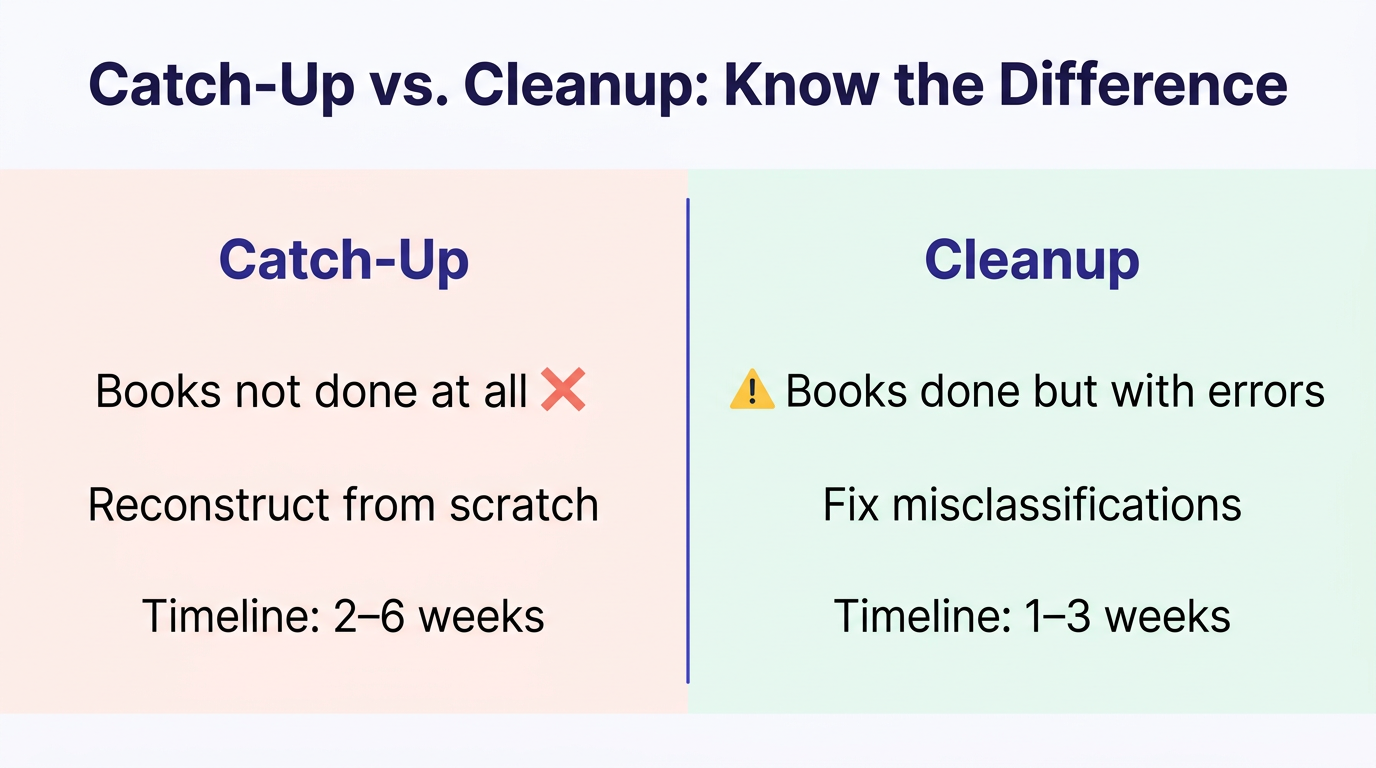
The industry uses these terms somewhat interchangeably, but there is a distinction:
| Catch-Up Bookkeeping | Cleanup Bookkeeping | |
|---|---|---|
| Problem | Books haven’t been done at all | Books were done but have errors |
| Scope | Reconstruct missing months/years from scratch | Fix misclassifications, duplicates, and reconciliation issues |
| Common cause | Bookkeeper quit, owner too busy, outgrew spreadsheets | Untrained staff, DIY mistakes, software migration issues |
| Timeline | 2-6 weeks | 1-3 weeks |
Most businesses that are “behind” need a combination of both — some months with no bookkeeping at all, and other months with records that exist but aren’t accurate.
Catch-up bookkeeping is typically priced as a one-time project. Costs depend on three factors:
Here’s what to expect:
| Scenario | Typical Cost | Timeline |
|---|---|---|
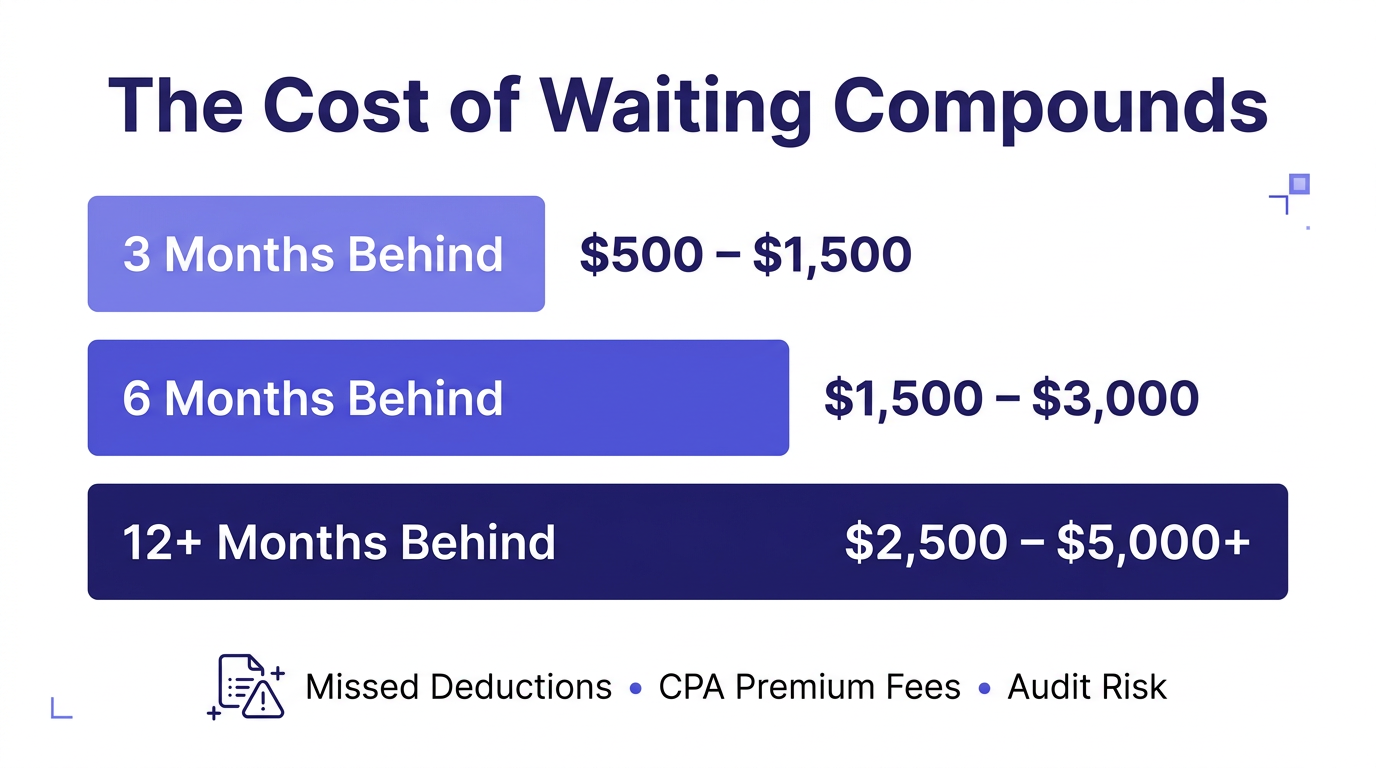
| 3-6 months behind, low volume | $500 – $1,500 | 1-2 weeks |
| 6-12 months behind, moderate volume | $1,500 – $3,000 | 2-3 weeks |
| 1-2 years behind, moderate volume | $2,500 – $5,000 | 3-5 weeks |
| 2+ years behind or high volume | $5,000 – $10,000+ | 4-8 weeks |
Most reputable firms provide a fixed quote after reviewing your accounts — you should know the total cost before work begins.
Messy books don’t just create headaches — they cost real money in ways you might not realize:
Every month you delay, the catch-up cost grows — both the direct project cost and the indirect costs you’re accumulating.
If any of these sound familiar, it’s time:
Before any catch-up bookkeeping project begins, you’ll need to assemble the raw materials:
Pro Tip: Don’t wait until you have everything organized perfectly before reaching out. A good catch-up bookkeeping firm will tell you exactly what they need and in what order. Waiting to “get organized first” is the most common reason businesses delay another 6 months.

Here’s what to expect when you hire a firm for catch-up bookkeeping:
The firm reviews your current state: what accounting software you’re using (if any), how far behind you are, transaction volume, and number of accounts. You get a fixed quote and timeline.
A good firm will ask specific questions during this phase:
You provide access to your accounting software, bank feeds, and supporting documents. The firm sets up or optimizes your chart of accounts.
For professional services firms, this step often includes restructuring the chart of accounts to support project-level tracking — something generic bookkeepers frequently miss.
This is the bulk of the work. The firm goes month by month:
Each month is reconciled individually, in chronological order, so that beginning balances carry forward correctly. This is why catch-up bookkeeping can’t be rushed — skipping months or reconciling out of order creates cascading errors.
The firm delivers clean financial statements — P&L, Balance Sheet, and General Ledger — covering the entire catch-up period. These are tax-ready and CPA-ready.
The best firms offer a seamless transition from catch-up to ongoing outsourced bookkeeping, so you never fall behind again. The catch-up fixes the past; monthly bookkeeping protects the future.

Professional services firms have catch-up complexities that general businesses don’t:
Some business owners consider doing their own catch-up bookkeeping. Here’s an honest comparison:
| Factor | DIY Catch-Up | Professional Catch-Up |
|---|---|---|
| Cost | $0 (your time) | $500 – $10,000 |
| Your time invested | 40-200+ hours | 2-5 hours (access + review) |
| Timeline | 2-6 months (nights/weekends) | 2-6 weeks |
| Accuracy | 85-90% (if careful) | 98%+ |
| Tax readiness | Maybe — CPA will likely find issues | Yes — CPA-ready deliverables |
| Opportunity cost | 40-200 hrs × your billing rate | Minimal |
Reality check: The most common outcome of DIY catch-up bookkeeping is a half-finished project. Business owners start with good intentions, spend 15-20 hours over a weekend, get overwhelmed, and stop. Three months later, they’re even further behind. If you’re going to do it yourself, commit to finishing — or hire a professional from the start.
Whether you do it yourself or hire someone, watch for these errors:
Every month’s ending balance becomes the next month’s opening balance. If you skip around, you’ll create discrepancies that are painful to unwind. Always reconcile chronologically.
Dumping everything into “Office Expenses” or “Miscellaneous” defeats the purpose. A proper catch-up includes setting up meaningful categories that support business decisions. See our QuickBooks Online setup guide for how this should look.
Transfers between your own accounts (checking → savings, business → owner draw) are the most commonly missed entries. They show up as unexplained deposits and withdrawals that throw off reconciliation.
If you’ve been using a personal card for business expenses (or vice versa), these need to be identified and properly recorded as owner contributions or draws.
Payroll entries from Gusto, ADP, or Paychex need to be reconciled against bank withdrawals. This includes gross wages, employer taxes, benefits deductions, and net pay. Skipping this step means your P&L doesn’t reflect your actual labor costs — which for professional services firms, is 55-75% of total expenses.
Not all bookkeeping firms handle catch-up work the same way. Here’s what to evaluate:
The most expensive catch-up bookkeeping project is the one you have to do twice. Here’s how to stay current:
QuickBooks Online and Xero can import transactions automatically from your bank. This eliminates the most common reason businesses fall behind.
Even 30 minutes per month reviewing categorized transactions keeps your books current. A professional bookkeeping service handles this for you, typically closing books by the 10th-15th of the following month.
Meet with your bookkeeper quarterly. This is where you catch category drift, review project profitability, and identify trends before they become problems.
If you haven’t already, get a dedicated business bank account and credit card. Every transaction on those accounts is a business transaction — no more sorting through personal purchases at year-end.
Key insight: The firms that stay current after catch-up bookkeeping are the ones that transition to monthly outsourced bookkeeping. The catch-up project creates clean books; monthly bookkeeping keeps them clean. See our comparison of in-house vs. outsourced bookkeeping to determine the right setup for your firm.
At Steph’s Books, we specialize in catch-up bookkeeping for professional services firms with $1MM-$10MM in revenue. We’ve cleaned up books going back 5+ years and typically complete catch-up projects in 2-6 weeks.
Every project gets a fixed quote upfront — no hourly billing surprises. And when the catch-up is done, we transition you to monthly bookkeeping so you never fall behind again.
Get a free catch-up bookkeeping quote →
Answer a few quick questions for an instant, no-obligation quote — no sales call required. See how Steph's Books saves you 40-60% vs. hiring in-house.