Every messy set of books we inherit has the same root problem: bank accounts that were never properly connected to QuickBooks Online. Transactions get keyed in twice. Business checking and the owner's personal card get tangled together. The year-end scramble begins in October instead of January. If you're learning how to add a bank account to QuickBooks Online — or adding a second or third account as your business grows — getting this right saves hours of cleanup and protects every report QBO produces downstream.
This guide walks you through both ways to connect a bank to QBO in 2026, what to verify first, the exact menu path Intuit uses today, and the pitfalls that quietly break bank feeds a month later. If you're coming from QuickBooks Desktop, timing matters: Intuit stopped selling new Pro Plus, Premier Plus, and Mac Plus subscriptions back in September 2024, and QuickBooks Desktop 2023 loses support on May 31, 2026. Existing subscribers can keep renewing for now, but the writing is on the wall — QBD 2024 is the final non-Enterprise release, with support ending September 30, 2027. That makes 2026–2027 the migration window for most Desktop users, and a clean bank connection is step one.
QBO gives you two paths, and they solve different problems. A connected account (bank feed) uses a secure aggregator — Intuit primarily uses Plaid and Finicity — to pull transactions directly from your financial institution into QBO every night. A manual account is a Chart of Accounts entry where you type transactions in yourself or upload a CSV/QBO file from your bank.
Most small businesses should use connected accounts wherever possible: 3-5 hours saved per month per account, faster categorization via QBO's rules engine, and near-real-time cash visibility. Manual makes sense for a low-activity savings account, a trust account requiring strict segregation, or a small bank without aggregator support.
| Feature | Connected (Bank Feed) | Manual Account |
|---|---|---|
| Transaction entry | Auto-imported nightly via Plaid/Finicity | Typed in or uploaded via CSV/QBO file |
| Time to maintain | 10-15 min/week review | 1-2 hours/month entry + review |
| Accuracy | High — matches what the bank cleared | Depends on data-entry discipline |
| Best for | Checking, credit cards, high-activity accounts | Savings, petty cash, trust, small banks without support |
| Reconciliation | Fast — most items pre-matched | Slower — more manual matching |
| Risk | Connection breaks after bank auth changes | Missed transactions if you forget to enter them |
| Historical data | Last 90 days on first connect; older needs upload | Whatever you enter or import |
A hybrid approach works for most professional services firms: connect operating checking, payroll, and all business credit cards; keep savings and trust accounts manual.
Most "my bank feed is broken" tickets we see at Steph's Books come from setup shortcuts that five minutes of prep would have prevented. Don't skip this section.
1. Confirm it's a business account, not a personal one. If you're a sole proprietor with no separate business checking, open one first. Commingling exposes you in an audit and makes true profitability impossible to calculate. The IRS doesn't require a separate account for sole props, but every bookkeeper who's unwound commingled books will beg you to get one.
2. Have banking credentials ready — and confirm MFA works. Most banks require MFA the first time Plaid links. Have your phone in hand. If your bank uses a hardware token or push app, make sure it's installed and charged. The connection times out after 2-3 minutes.
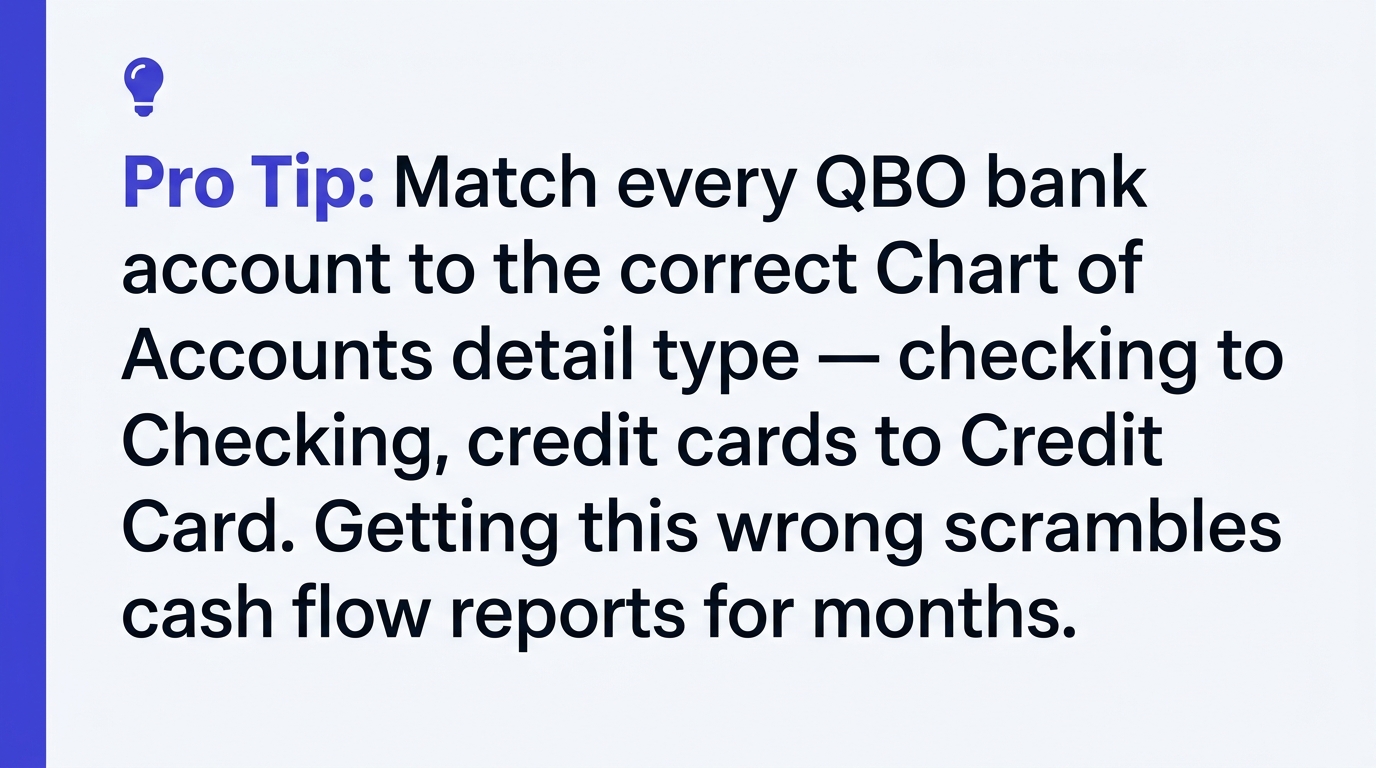
3. Know the Chart of Accounts category. Every QBO bank account ties to a CoA entry with a specific Detail Type. Checking uses "Checking." Savings uses "Savings." Business credit cards use Account Type "Credit Card." Getting this wrong is the single biggest reason QBO reports look strange three months later — a checking account miscategorized as "Other Current Asset" won't appear on cash flow the way you expect.
Pro Tip: Before you click "Connect," open Chart of Accounts in a second tab and confirm the Account Type and Detail Type you plan to map to. If you're adding a second checking account, name it descriptively — "Checking — Operating" and "Checking — Payroll" — not just the last four digits. Future you will thank present you at tax time.
Here's the exact path in QBO's 2026 interface. Intuit moved the Banking center under Transactions in the New UI rollout, so on an older interface you may see "Banking" as a top-level menu item.
If your bank isn't found: type the URL exactly as it appears in your browser (e.g., chase.com, not Chase Bank). If Plaid still can't find it, the institution probably doesn't support automated feeds. Check whether your bank lets you download a .QBO or .CSV file — almost all do — and upload via Transactions > Bank transactions > Upload transactions. Intuit maintains the supported-institution list in its Connect bank and credit card accounts help article.
Connected the account — now who reconciles it?
Bank feeds miscategorize, duplicate, and quietly break. We reconcile every account monthly so your QuickBooks matches reality at year end.
Get an instant quoteTalk to us firstManual accounts take about 60 seconds to create. Use this when your bank isn't supported by Plaid/Finicity, you prefer to enter transactions yourself, or you want strict control over a savings or trust account.
These four issues cause most of the broken connections and messy first-month books we see in client cleanups.
MFA breaking the connection. Some banks — Chase, Wells Fargo, and most credit unions — require re-authentication every 30 to 90 days. The feed stops, transactions stop flowing, and you won't notice until reconciliation. Set a monthly calendar reminder to open Transactions > Bank transactions and verify every connected account has a recent "last update" timestamp.
Duplicate Chart of Accounts entries. If you disconnect and reconnect a bank without linking to the existing CoA entry, QBO creates a second entry — "Chase Checking" and "Chase Checking-1" both holding partial histories. Fix by merging: open the duplicate, rename it to exactly match the original, save, and QBO will prompt to merge.
Posting date vs transaction date confusion. Plaid delivers transactions with the posted date, not the date you swiped the card or wrote the check. A March 31 purchase that posts April 2 lands in April in QBO. Accrual-basis books may need month-end date adjustments; cash-basis firms can usually ignore it.
Starting balance mistakes. Never type a starting balance into the "Add Account" form unless the account is brand-new. For existing accounts, always post the opening balance via a journal entry with an accountant's input.
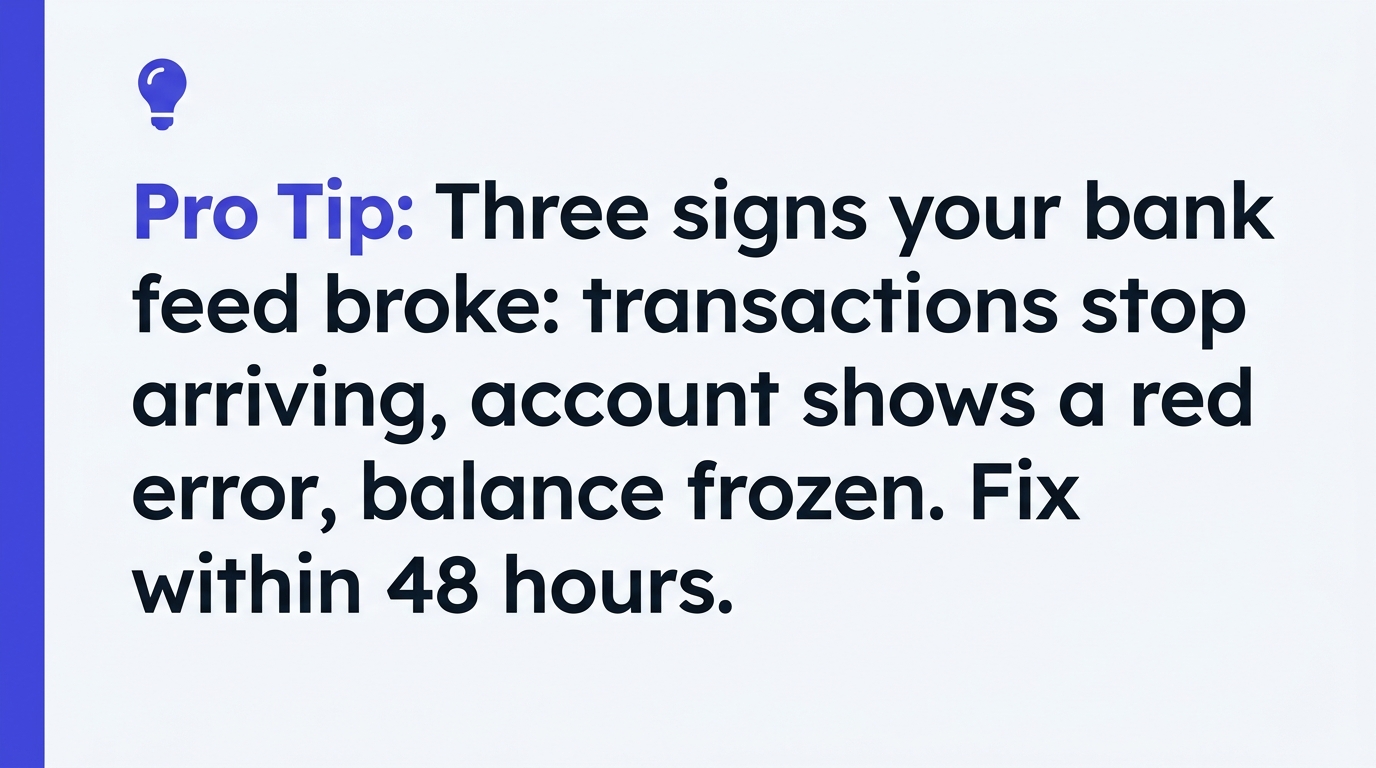
Important: Three signs your bank connection broke: (1) the "last updated" timestamp is more than 72 hours old, (2) your QBO uncleared balance diverges from your actual bank balance by more than the amount of outstanding checks, or (3) your reconciliation difference grows month over month instead of clearing to zero. Re-authenticate the feed before the next month closes.
Adding the account is step one. The first reconciliation proves the connection is clean and the starting balance is right. Skip it and you'll be debugging ghost transactions six months from now.
Go to Transactions > Reconcile, select the account, enter the ending balance and date from your statement, and click Start. QBO lists every transaction it pulled; check each one against your paper or PDF statement. When "Difference" hits $0.00, you're balanced.
The uncleared balance represents transactions QBO knows about but that haven't cleared the bank — outstanding checks, pending deposits, recent card charges. If it's bigger than it should be, or contains items more than 60 days old, you likely have duplicates or items the bank never processed.
Do your first reconciliation the moment your first full statement arrives. If you connected mid-month, wait for the statement period to close. If you uploaded historical transactions, reconcile each past month in sequence. For a deeper walkthrough see Intuit's Reconcile accounts in QuickBooks Online guide.
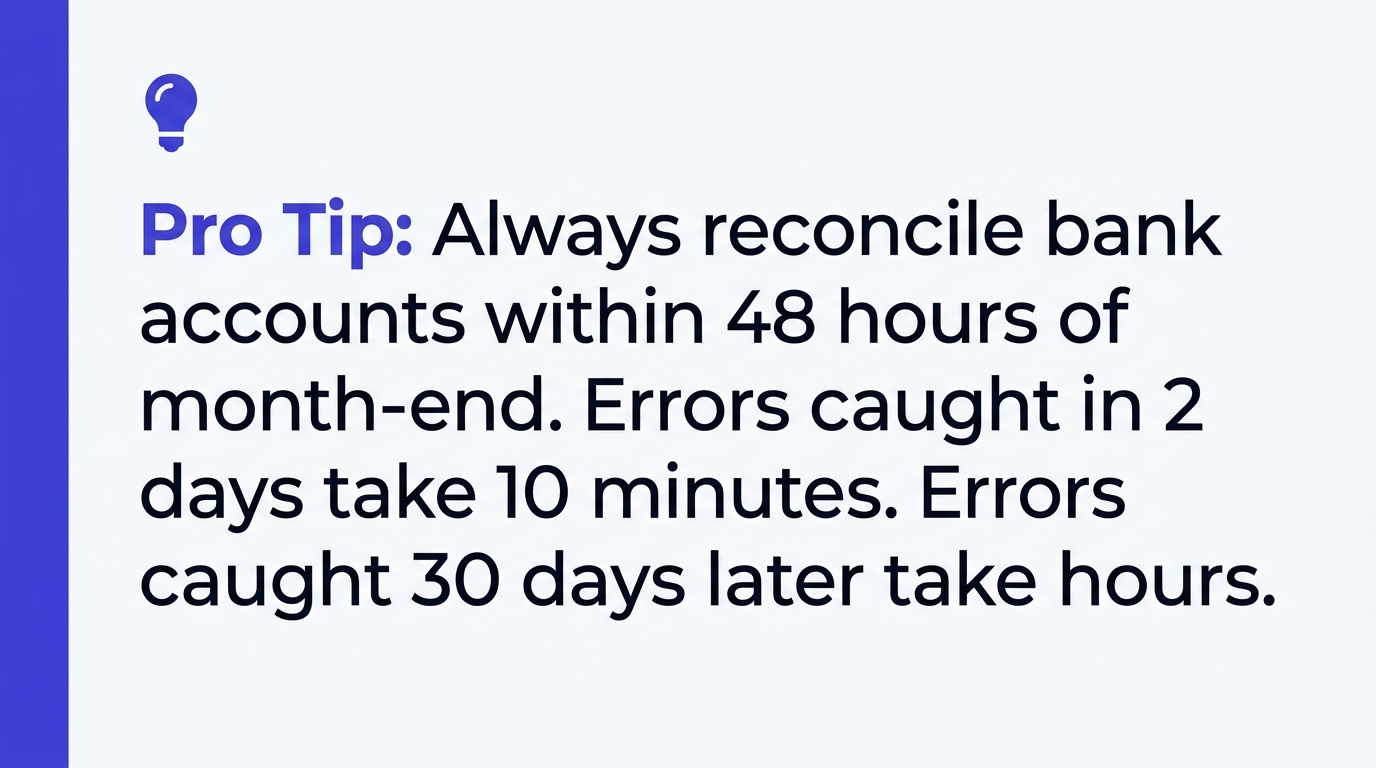
Pro Tip: Reconcile within 48 hours of your statement's closing date. Waiting a month means trying to remember what a $427 charge from three weeks ago was for — and you'll end up guessing. Fresh reconciliations are accurate reconciliations. If this is falling off your plate every month, that's exactly the problem outsourced bookkeeping solves.
Most firms outgrow a single account faster than expected. Adding accounts strategically — not reactively — keeps books clean as the business scales.
Separate operating and payroll. Once you have more than three employees, a dedicated payroll checking account simplifies cash planning and protects operating funds from payroll-day sweeps. Transfer the exact run amount plus taxes the day before each run. Reconciliation becomes trivial — only deposits from operating and disbursements to employees and tax agencies.
Sales tax holding account. If you collect sales tax in multiple jurisdictions, a dedicated holding account forces discipline. Transfer the sales tax portion from each sale the same week it's collected. When quarterly filing is due, the money is already there.
Trust accounts for regulated industries. Law firms (IOLTA), property managers, real estate escrow, and healthcare providers holding patient funds are usually required by state rules to keep client funds segregated. These must be set up as separate bank accounts with strict controls to prevent commingling. Commingling trust and operating funds is an ethical violation in most states with license implications — follow your state bar or regulator's guidance, and consider a dedicated tool like Clio or LeanLaw that syncs to QBO. See the ABA's client protection resources for a state-by-state overview.
Business credit cards. Each card is its own QBO account with Account Type "Credit Card." Add them as connected accounts — the feed handles the statement cycle automatically.
Adding bank accounts to QuickBooks Online is simple in isolation and messy at scale. One checking account and one credit card? The steps above will get you set up in under 30 minutes. A professional services firm with operating, payroll, sales tax holding, and a trust account — plus multiple credit cards across a growing team — is where the real configuration and ongoing reconciliation work lives, and it's where most owners lose evenings they'd rather spend on clients. Get an instant quote for outsourced bookkeeping in under two minutes. Your books get cleaner — and your Sunday nights get shorter.
Answer a few quick questions for an instant, no-obligation quote — no sales call required. See how Steph's Books saves you 40-60% vs. hiring in-house.